Beginner sequence · Step 2 of 3
Start here
Readiness check: Can the pair select a sprite, drag a block, and find the space key? Model these actions separately first.
Exact starter recipe
Create two costumes on ONE sprite. Name them Rest and Happy.
Script A:
when green flag clicked
switch costume to [Rest]
say []

Script B:
when [space] key pressed
switch costume to [Happy]
say [Hello!] for (2) seconds
switch costume to [Rest]
Test with single presses spaced at least three seconds apart.
Make the simplest version work first. Then use the test and extension in this lesson.
Teacher learning resources
Preview external resources before class. The circuit reference explains the science; use this page’s specified AA kit and connection list for the build.
Scratch · Grade 3 · Guided practice
How to code this project
What you will make: Build the two starter scripts below the lesson’s Start Here heading, one block at a time.
Core coding lesson. Use the exact Rest and Happy costume names from the starter recipe above.
Before you start
- Open a blank teacher-approved Scratch project; select the pet sprite, not the Stage.
- Make Rest and Happy as two costumes of ONE sprite.
Opening and saving: Open the teacher-approved Scratch editor and select your sprite. The recipe is a block-by-block guide, not text to paste into Scratch. Build blocks with matching names and keep indented lines inside their enclosing blocks. Save through File → Save to your computer as an .sb3 file; no public sharing is required.
Build it one step at a time
- Open Events (yellow). Drag when green flag clicked into the coding area.
- Open Looks (purple). Snap switch costume to Rest underneath, then say with its text left empty. This is the reset script.
- Drag a separate when space key pressed Events hat into an empty area. Do not attach it to the first script.
- Under this hat add switch costume to Happy, say Hello! for 2 seconds, and switch costume to Rest, in that order.
- Click the green flag, click the stage, and press space once. Wait at least three seconds before pressing again.
- Save a project file to the approved school folder. Reopen it and test one more greeting.
Your block recipe
Use the two complete scripts in “Exact starter recipe” above.
Yellow Events = what starts it.
Purple Looks = what the pet shows.
Read the blocks from top to bottom.
Predict, test and record
Write your name and date on the printed page. Run every test, note the actual result, and retest after one change.
| Try this input | Expected result | Actual result / retest |
|---|---|---|
| Green flag | Rest, no speech bubble | ________________ |
| One space press | Happy + Hello! for 2 seconds, then Rest | ________________ |
| A different key | No greeting | ________________ |
If it does not work
- Space types into a block? Click the stage first to leave the text field.
- Wrong costume? Check both costumes belong to the same selected sprite.
Make one change
Change Hello! to your own short greeting; test and save again.
We changed __________. We predicted __________. Our test showed __________.
Teacher pacing: Use a 45-minute coding session: 5 minutes to predict, 10 to model a first working response, 20 for paired building, 7 for tests and 3 to save and explain. Continue in another meeting if setup or debugging takes longer; do not rush hardware checks.
Grade 3 support: Model one block at a time; partners alternate choosing blocks and explaining the result. Accept spoken or drawn test evidence.
Teacher learning resources
Preview resources before class. Follow this page’s specified reference build; another tutorial may use different hardware.
Print support: The lesson’s Print button includes this guide, recipe and test table.
For teachers
Engineering standards
This shows how the lesson connects to the national NGSS engineering standards and what student work you can collect.
3-5-ETS1-1
Define the user's need for scratch pet: press a key and agree on the listed success criteria and limits.
What students show: A stated user need and checked criteria; this is engineering-design practice, not a separate coding standard.3-5-ETS1-2
Compare two possible routes, pet behaviors, or switch arrangements before selecting one for the user.
What students show: Two small plans and a reason for the selected design.3-5-ETS1-3
Repeat the stated test under the same conditions, identify a failure, change one feature, and retest.
What students show: Before-and-after test entries and an explanation connecting the change to the result.Materials
- Teacher-managed computer with physical keyboard and Scratch editor
- Paper for two pet-costume sketches
- Approved folder for saving .sb3 project files
- Printable design brief
Teacher preparation
- Check readiness: Can the pair select a sprite, drag a block, and find the space key? Model these actions separately first.
- Open a blank Scratch project in the approved editor and demonstrate saving to the school folder.
- Prepare two simple original costumes; do not require detailed art. Preview only selected educator resources.
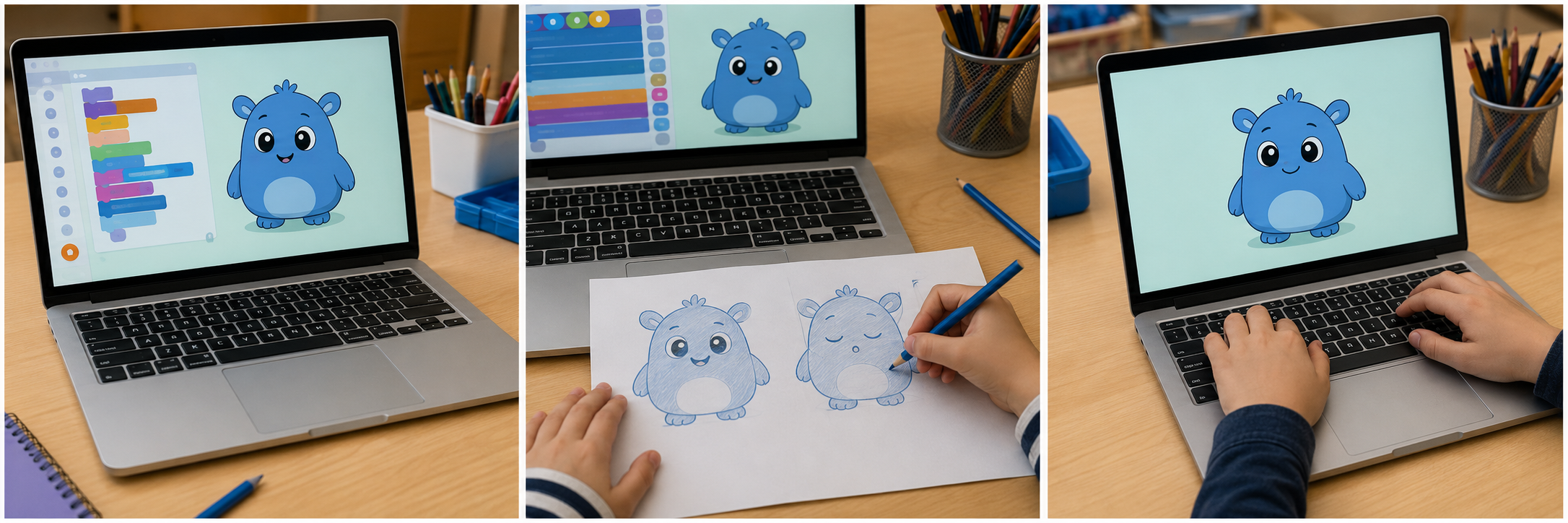
- Prepare the printable design brief at the end of this page. Use the project picture as inspiration, not a technical diagram or a required artistic finish.
Step by step
How to teach it
Meet the beginner challenge
- Make a simple blue digital pet that greets a visitor when the space key is pressed and returns to its resting costume.
- Read the criteria together. Ask students to predict what the system should do.
Model one working action
- Draw one simple blue pet sprite. Duplicate its costume; make one rest face and one happy face. Name the costumes Rest and Happy.
- Build Script A from the recipe so the green flag resets the pet.
- Use the exact starter recipe below. Ask a student to explain the action before demonstrating a second step.
Compare two small plans
- Sketch or arrange two possible solutions using the same materials.
- Compare each plan against the criteria; choose one and state a reason.
Build the smallest working version
- Build Script B under a when-space-key-pressed event. Keep both scripts on the pet sprite.
- Click the green flag, then press space once. Watch the costume and speech bubble.
- Wait at least three seconds before trying again. Check that the pet returns to Rest.
Check and save
- Show one working action. Record where you stopped and what you need next.
- Save the project to the teacher-approved location using File → Save to your computer.
- Return materials and reset the workspace.
Rebuild understanding
- Read the saved plan and predict the first test.
- Reset the starting state and test the simplest action.
Test fairly
- Reset with the green flag. Predict the response to space before touching the keyboard.
- Run three single space presses, waiting for each greeting to finish. Record greeting and return-to-rest results.
- Try a different unassigned key once; it should not start the greeting.
Improve one thing
- Identify the first point where the result differed from the prediction.
- Change one instruction, code block, or mechanical feature. Repeat exactly the same test.
- If the core skill is secure, offer the extension; otherwise use the support option.
Share evidence and clean
- Let another pair try the project with your directions.
- Use the worksheet to show an original result, a change, and the new result.
- Save or label the work, then return materials.
Assessment
- The green flag reliably resets the pet to Rest.
- A single space press produces Happy, a greeting, and a return to Rest.
- The pair records three tests and can identify the event block.
- Student predicts an outcome before testing.
- Test record distinguishes expected and actual results.
- Student explains why the revision helps; neat decoration and speed are not assessment criteria.
Supports & extensions
- Provide two named costumes and the green-flag reset. Students connect the three response blocks.
- Offer larger cards or tools, a stabilized work surface, picture cues, partner assistance, and spoken or dictated evidence.
- Extension after success: Add a second key with a different greeting; test keys one at a time after each script finishes.
Safety & responsible use
- Use a teacher-managed Scratch session or approved offline editor; no account or public upload is required.
- Use invented names and original pet artwork. Do not enter personal information, record classmates, or browse community content independently.
- Keep sound quiet or omit it. Use short screen breaks and share keyboard control.
No-machine alternative
Make two paper costume cards. A partner acts as the computer, following the written event and response in order; record that this models code rather than runs it.
Printable student design brief
The challenge
Make a simple blue digital pet that greets a visitor when the space key is pressed and returns to its resting costume.
Success criteria
- The green flag reliably resets the pet to Rest.
- A single space press produces Happy, a greeting, and a return to Rest.
- The pair records three tests and can identify the event block.
Constraints
- One sprite, two costumes, and the listed beginner blocks first.
- Use two 45-minute meetings; start with the working system before decoration.
- Keep test conditions consistent and change only one feature at a time.
Engineer’s notes
Printable beginner test record
Predict. Try. Improve.
Name ____________________ Partner ____________________
Our success rule: __________________________________________________
| Trial | Input / action | Expected result | First result | Result after one change |
|---|---|---|---|---|
| 1 | ||||
| 2 | ||||
| 3 | ||||
| 4 | ||||
| 5 | ||||
| 6 | ||||
| 7 | ||||
| 8 | ||||
| 9 | ||||
| 10 |
Use three rows for the introductory tests or all ten for switch reliability. Write the held, released, or other-key state for each sensing test.
One thing we changed: ______________________________________________
Things we kept the same: ____________________________________________
Our evidence shows: _________________________________________________