For teachers
Engineering standards
This shows how the lesson connects to the national NGSS engineering standards and what student work you can collect.
3-5-ETS1-1
Teams define the user or purpose and identify measurable success criteria plus size, material, and time limits.
What students show: Problem statement with criteria, constraints, and a labeled planning sketch.3-5-ETS1-2
Students draw and compare at least two possible shapes, layouts, or joining methods before choosing a design.
What students show: Two ideas and a criteria-based explanation of the selected features.3-5-ETS1-3
Teams prototype in paper or cardboard, have the intended user load, rearrange, and use the organizer during the same three-minute task, revise one feature, and repeat the test.
What students show: Before-and-after prototype, test notes, and an evidence-based revision statement.Materials
- User interview and measurement sheets
- Assorted classroom tools to organize
- Cardboard layout and joint prototypes
- Paper, index cards, or thin cardboard for first prototypes
- Pencils, dark markers, rulers, tape, and child-safe scissors
- Computer or tablet with beginner vector-drawing software
- Teacher-approved laser material such as cardboard, plywood, or acrylic
- Calipers or a teacher-provided material-thickness gauge
Teacher preparation
- Choose and verify one material approved for the exact xTool model; record its measured thickness.
- Prepare a simple demonstration of cut lines, engrave areas, closed paths, and minimum feature size.
- Set up a paper-first prototype station and a material-saving size limit.
- Create the file rule G5_39_Team##_v1.
- Plan an adult-only file check and cutting queue; students observe from the designated safe area.
Step by step
How to teach it
Meet the need
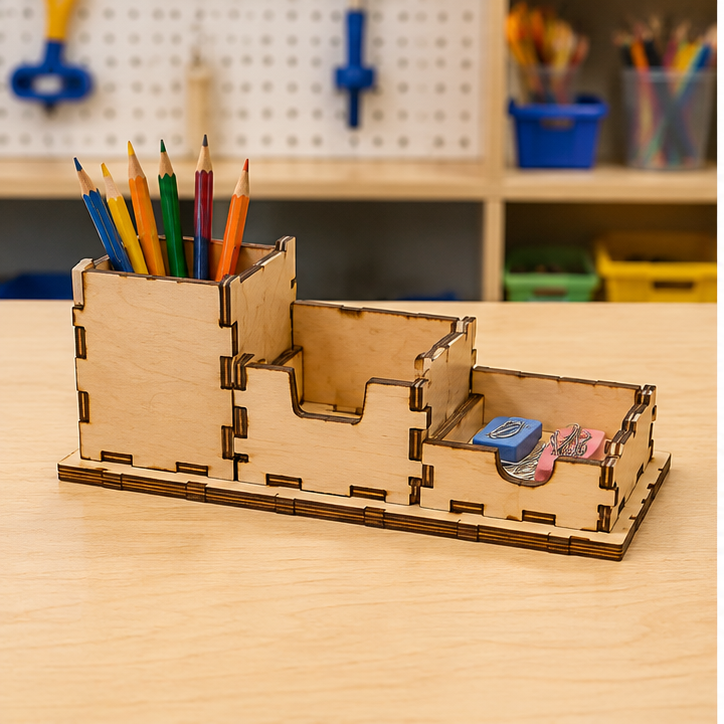
- Introduce the mission: Create a modular organizer that solves two real workspace problems for a chosen user.
- Name the user or purpose, then agree on criteria and constraints.
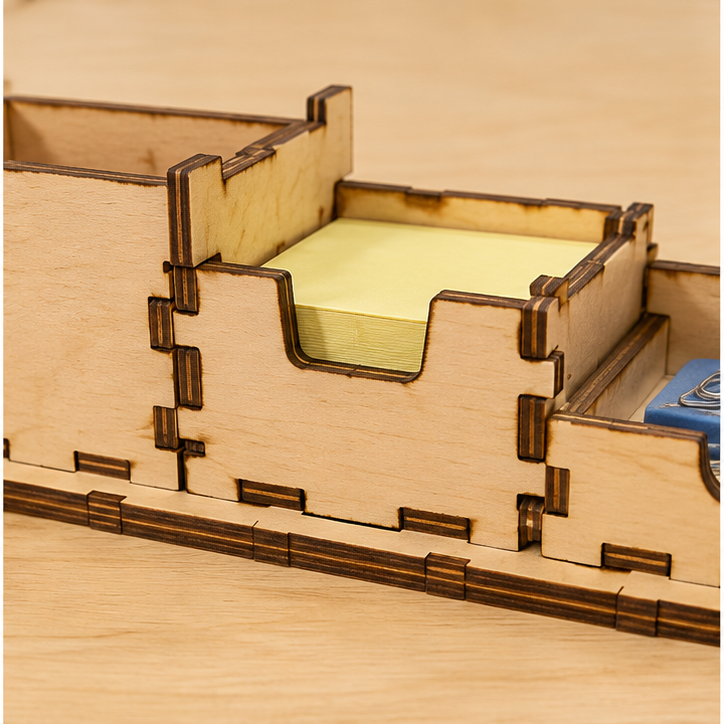
- Examine how tabs, slots, outlines, and engraved marks appear in sample pieces.
Imagine and compare
- Each student sketches a different solution using simple shapes.
- Teams compare the ideas against the criteria.
- Select or combine features and label all cuts, slots, folds, and engraved details.
Prototype first
- Build a full-size paper or cardboard version.
- Use the same test procedure: have the intended user load, rearrange, and use the organizer during the same three-minute task.
- Find one weak, confusing, loose, or oversized feature and revise it.
Make the vector file
- Trace or rebuild the improved design with bold closed paths.
- Measure every slot from the actual material thickness and keep tiny details out.
- Use the teacher checklist for size, line type, loose pieces, naming, and material use.
Cut, assemble, and retest
- A trained adult performs the final safety and material check and operates the laser.
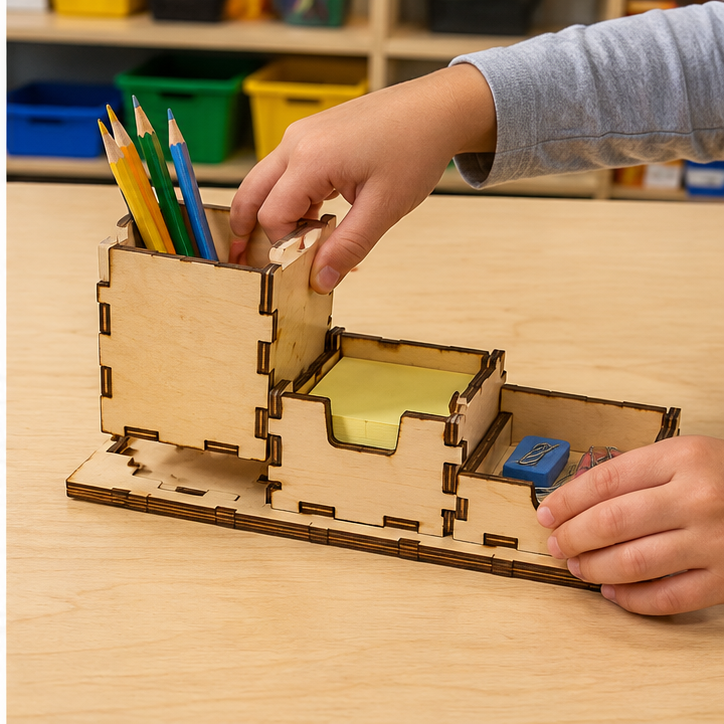
- Students assemble the finished parts without forcing joints.
- Repeat the original test, compare results, and explain one next improvement.
Assessment
- Problem statement includes a purpose, criteria, and constraints.
- Two ideas are compared before the final design is chosen.
- Paper or cardboard prototype is tested before final cutting.
- Vector file uses closed paths, readable details, and efficient material placement.
- Revision responds to recorded test evidence.
Supports & extensions
- Provide editable circle, rectangle, tab, slot, and name-tag starter files.
- Offer printed picture directions and a color-coded cut-versus-engrave key.
- Let students draw on paper for an adult or partner to trace digitally.
- Use larger parts, fewer joints, and pre-measured slot options when helpful.
- Extension: nest parts to reduce waste or compare two slot widths using measured fit data.
Safety & responsible use
- Students do not operate the laser cutter.
- A trained adult verifies material identity, settings, focus, ventilation, fire monitoring, and file placement.
- Never laser-cut PVC, vinyl, unknown plastics, unidentified coated materials, or any material not explicitly approved.
- Keep the lid closed during operation and follow the xTool model's required supervision and emergency procedures.
- Check cut edges and splinters before student assembly; use only teacher-approved adhesives and hand tools.
No-machine alternative
Make the final project from cardstock, corrugated cardboard, recycled folders, or foam board using child-safe scissors and teacher-prepared pieces. Keep the same criteria, comparison, test, and revision cycle.
Printable student design brief
The challenge
Create a modular organizer that solves two real workspace problems for a chosen user.
Success criteria
- Solves two documented user needs
- Modules connect securely but can be rearranged
- Labels or engraved graphics improve use
Constraints
- Uses the assigned material budget
- Fits the measured workspace
- Includes at least two interchangeable modules