For teachers
Engineering standards
This shows how the lesson connects to the national NGSS engineering standards and what student work you can collect.
3-5-ETS1-1
Teams define the user or purpose and identify measurable success criteria plus size, material, and time limits.
What students show: Problem statement with criteria, constraints, and a labeled planning sketch.3-5-ETS1-2
Students draw and compare at least two possible shapes, layouts, or joining methods before choosing a design.
What students show: Two ideas and a criteria-based explanation of the selected features.3-5-ETS1-3
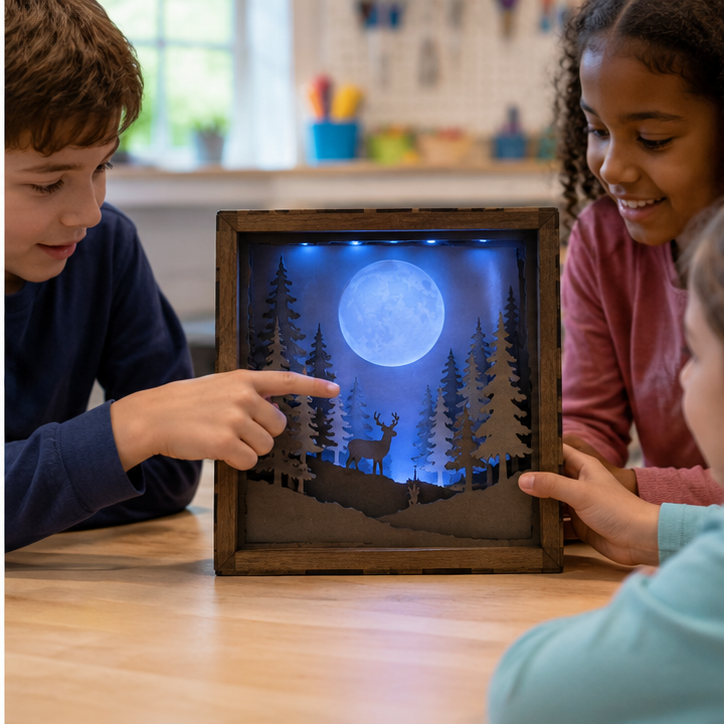
Teams prototype in paper or cardboard, show the scene to three viewers from the same distance and record what each person recognizes, revise one feature, and repeat the test.
What students show: Before-and-after prototype, test notes, and an evidence-based revision statement.Materials
- Black paper and tracing paper
- Cool LED tea lights or flashlights
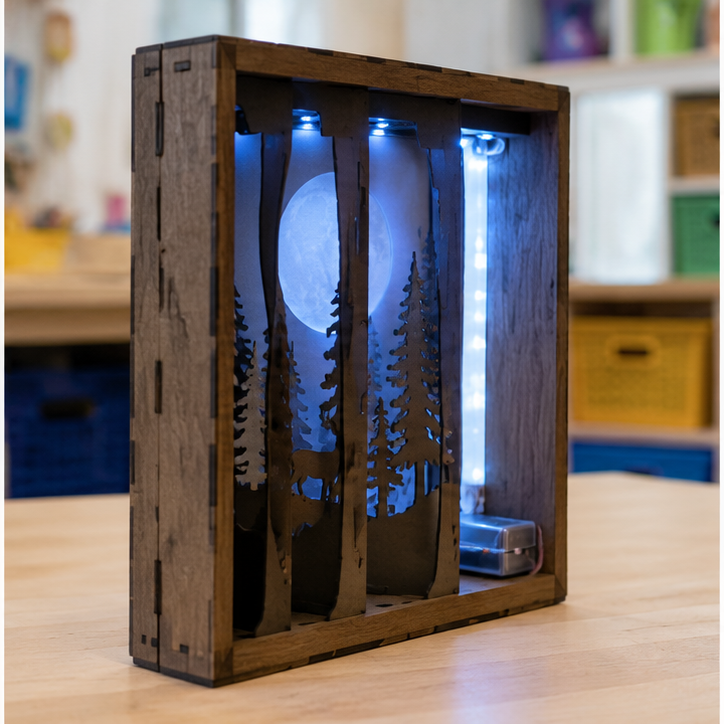
- Cardboard spacing strips
- Paper, index cards, or thin cardboard for first prototypes
- Pencils, dark markers, rulers, tape, and child-safe scissors
- Computer or tablet with beginner vector-drawing software
- Teacher-approved laser material such as cardboard, plywood, or acrylic
- Calipers or a teacher-provided material-thickness gauge
Teacher preparation
- Choose and verify one material approved for the exact xTool model; record its measured thickness.
- Prepare a simple demonstration of cut lines, engrave areas, closed paths, and minimum feature size.
- Set up a paper-first prototype station and a material-saving size limit.
- Create the file rule G3_37_Team##_v1.
- Plan an adult-only file check and cutting queue; students observe from the designated safe area.
Step by step
How to teach it
Meet the need
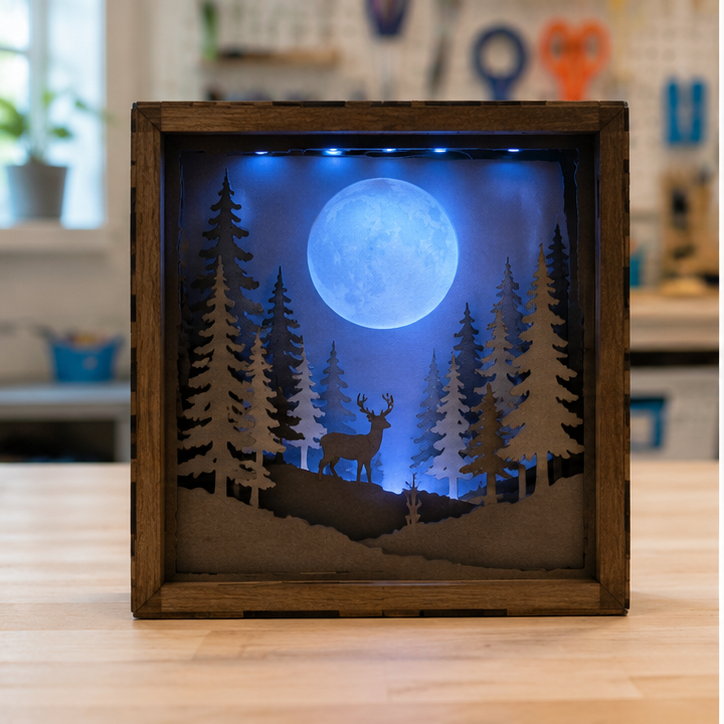
- Introduce the mission: Make a layered window scene that viewers can recognize from its shapes and light.
- Name the user or purpose, then agree on criteria and constraints.
- Examine how tabs, slots, outlines, and engraved marks appear in sample pieces.
Imagine and compare
- Each student sketches a different solution using simple shapes.
- Teams compare the ideas against the criteria.
- Select or combine features and label all cuts, slots, folds, and engraved details.
Prototype first
- Build a full-size paper or cardboard version.
- Use the same test procedure: show the scene to three viewers from the same distance and record what each person recognizes.
- Find one weak, confusing, loose, or oversized feature and revise it.
Make the vector file
- Trace or rebuild the improved design with bold closed paths.
- Measure every slot from the actual material thickness and keep tiny details out.
- Use the teacher checklist for size, line type, loose pieces, naming, and material use.
Cut, assemble, and retest
- A trained adult performs the final safety and material check and operates the laser.
- Students assemble the finished parts without forcing joints.
- Repeat the original test, compare results, and explain one next improvement.
Assessment
- Problem statement includes a purpose, criteria, and constraints.
- Two ideas are compared before the final design is chosen.
- Paper or cardboard prototype is tested before final cutting.
- Vector file uses closed paths, readable details, and efficient material placement.
- Revision responds to recorded test evidence.
Supports & extensions
- Provide editable circle, rectangle, tab, slot, and name-tag starter files.
- Offer printed picture directions and a color-coded cut-versus-engrave key.
- Let students draw on paper for an adult or partner to trace digitally.
- Use larger parts, fewer joints, and pre-measured slot options when helpful.
- Extension: nest parts to reduce waste or compare two slot widths using measured fit data.
Safety & responsible use
- Students do not operate the laser cutter.
- A trained adult verifies material identity, settings, focus, ventilation, fire monitoring, and file placement.
- Never laser-cut PVC, vinyl, unknown plastics, unidentified coated materials, or any material not explicitly approved.
- Keep the lid closed during operation and follow the xTool model's required supervision and emergency procedures.
- Check cut edges and splinters before student assembly; use only teacher-approved adhesives and hand tools.
No-machine alternative
Make the final project from cardstock, corrugated cardboard, recycled folders, or foam board using child-safe scissors and teacher-prepared pieces. Keep the same criteria, comparison, test, and revision cycle.
Printable student design brief
The challenge
Make a layered window scene that viewers can recognize from its shapes and light.
Success criteria
- Viewers recognize the main scene
- Layers stay connected and strong
- Light passes through intentional open spaces
Constraints
- Uses a teacher-provided frame size
- Uses 2–3 visual layers
- Cool LED light only; no flame