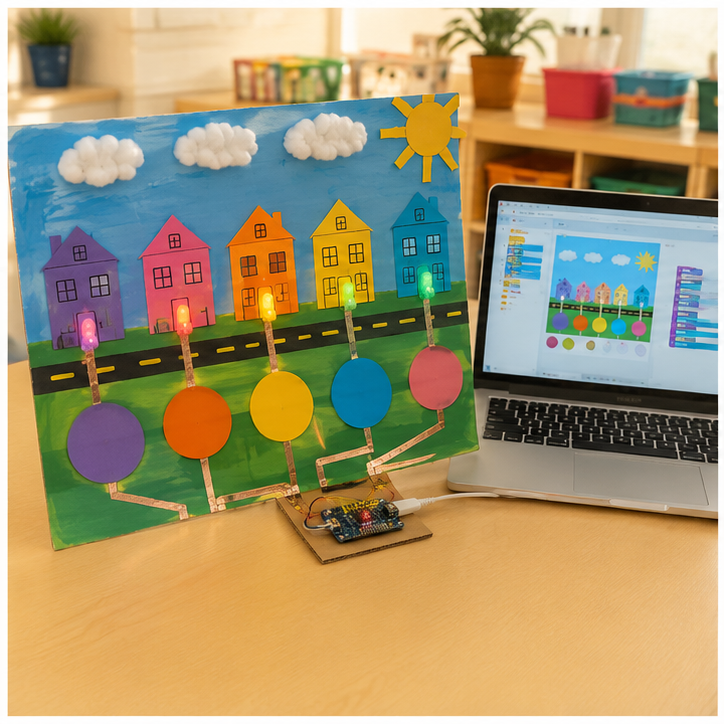
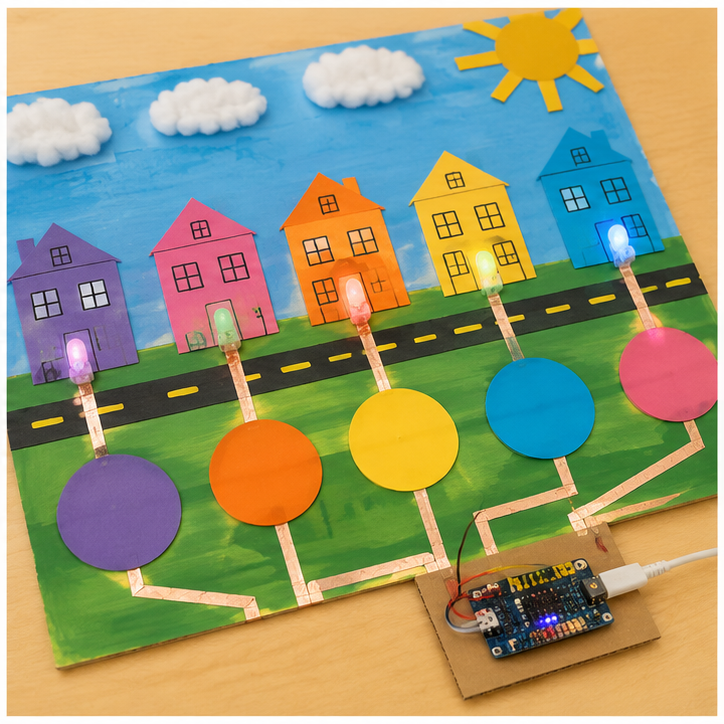
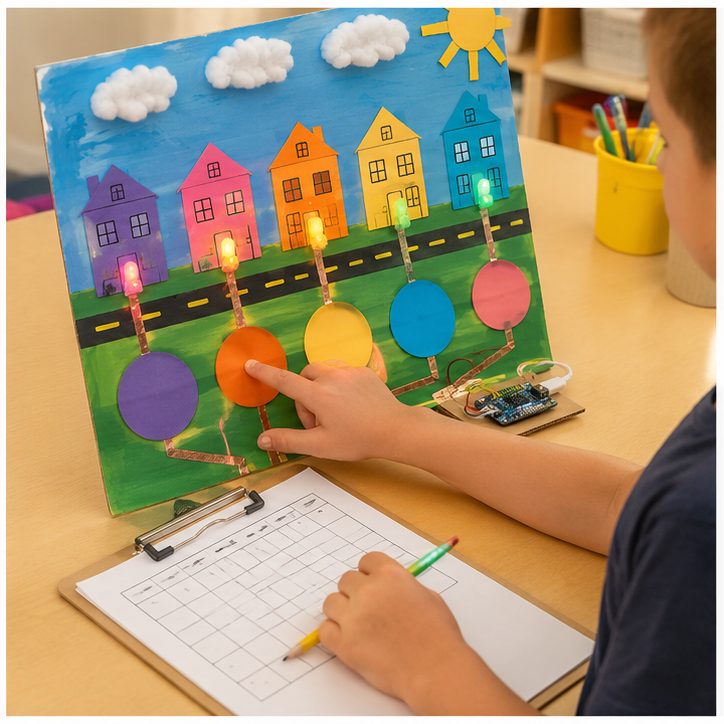
Scratch · Grade 5 · Guided practice
How to code this project
What you will make: Make three touch or keyboard controls choose three original color compositions.
This starter uses touch/key events, one of the lesson’s approved input choices. It does not recognize music or measure sound. Pair the screen with a painted or collaged wall; use teacher-approved rhythm taps as a performance cue.
Before you start
- Paint one full-stage sprite with three costumes named Calm, Energy and Surprise. Make their shapes as well as colors different.
- Optional Makey Makey: three separate conductive pads for left, right and up, plus an EARTH hand pad; adult checks connections.
Opening and saving: Open the teacher-approved Scratch editor and select your sprite. The recipe is a block-by-block guide, not text to paste into Scratch. Build blocks with matching names and keep indented lines inside their enclosing blocks. Save through File → Save to your computer as an .sb3 file; no public sharing is required.
Build it one step at a time
- Build the four scripts on the art sprite. Use yellow Events hats and purple Looks blocks.
- Test keyboard keys first and describe each visual response.
- If using Makey Makey, unplug it for wiring; connect separate pads to the named arrow inputs and a hand pad to EARTH. Adult checks before USB connection.
- Touch EARTH and one input pad to select a composition. Test all three.
- One student makes gentle rhythm taps on the table while another chooses visual responses; discuss artistic choices, not automatic sound detection.
- Reset with the green flag and record whether an unfamiliar visitor can use the labels.
Your block recipe
when green flag clicked
switch costume to [Calm]

when [left arrow] key pressed
switch costume to [Calm]

when [right arrow] key pressed
switch costume to [Energy]

when [up arrow] key pressed
switch costume to [Surprise]
Predict, test and record
Write your name and date on the printed page. Run every test, note the actual result, and retest after one change.
| Try this input | Expected result | Actual result / retest |
|---|---|---|
| Right arrow | Energy | ________________ |
| Up arrow; then left arrow | Surprise; then Calm | ________________ |
| Green flag after any selection | Calm | ________________ |
If it does not work
- Wrong artwork? Match the exact costume names in each block.
- Pads fail but keyboard works? Check EARTH and separated conductive connections with the teacher.
Make one change
Change the composition for one input, then ask a viewer to describe the difference without relying only on color names.
We changed __________. We predicted __________. Our test showed __________.
Teacher pacing: Use a 45-minute coding session: 5 minutes to predict, 10 to model a first working response, 20 for paired building, 7 for tests and 3 to save and explain. Continue in another meeting if setup or debugging takes longer; do not rush hardware checks.
Grade 5 support: Start with the working reference version, then explain each condition or state. Keep an input/expected/actual test log and change only one variable at a time.
Teacher learning resources
Preview resources before class. Follow this page’s specified reference build; another tutorial may use different hardware.
Print support: The lesson’s Print button includes this guide, recipe and test table.
For teachers
Engineering standards
This shows how the lesson connects to the national NGSS engineering standards and what student work you can collect.
3-5-ETS1-1
Teams define who needs the sound-to-color art wall and set measurable performance, safety, material, and time limits.
What students show: User-centered problem statement with criteria and constraints.3-5-ETS1-2
Teams compare at least two circuit, code, or enclosure ideas against the success criteria.
What students show: Labeled system diagrams and a recorded design choice.3-5-ETS1-3
Teams run a repeatable test—give visitors the same three interaction prompts and record whether the artistic response feels clear and engaging—then change one variable and retest.
What students show: Test table, code or build revision, and evidence-based explanation.Materials
- Cardboard, paper, craft sticks, tape, reusable building pieces, and student-proposed materials
- Project platform: Paint/collage + Scratch or Makey Makey + vinyl cutter
- Breadboard, paper-circuit supplies, or low-voltage power when needed
- sound level, rhythm taps, touch pads, or buttons input component or student-designed substitute
- screen color, LEDs, moving shapes, or revealed artwork output component or student-designed substitute
- LEDs, resistors, jumper wires, copper tape, switches, and clips as needed
- Vinyl cutting materials for an optional case, sign, mount, or model
- Computer with approved coding or simulation tools when needed
- Planning sheet, ruler, and test-data table
Teacher preparation
- Build and test one possible reference solution without making it the required design.
- Prepare a basic-materials table plus optional electronics and fabrication stations.
- If coding is used, prepare a starter option for events, variables, timing, and student-created color rules; students may propose another workable control method.
- Prepare optional fabrication templates and a file rule beginning G5_22.
- Mark adult approval points before power-on and machine fabrication.
Step by step
How to teach it
Meet the user and define success
- Introduce the application: Help visitors experience a piece of music, rhythm, or spoken pattern through color and interaction.
- Identify the user, need, criteria, and constraints.
- Draw a system map with input → code → output.
Build a first solution
- Choose basic, electronic, and fabricated materials based on the team's idea.
- Build with power disconnected whenever electronics are used.
- Complete an adult check, then troubleshoot one connection or physical feature at a time.
Create the behavior
- Create the first working control using events, variables, timing, and student-created color rules.
- Predict what one rule, connection, or code change will do before testing it.
- Make the system understandable with labels, diagrams, comments, or coding blocks.
Test and improve
- Use the same procedure each time: give visitors the same three interaction prompts and record whether the artistic response feels clear and engaging.
- Record at least three results.
- Change one code, circuit, or physical-design variable and retest.
Fabricate and present
- Design a vinyl cutting part that protects, mounts, or explains the electronics.
- Adult reviews and operates fabrication equipment where required.
- Connect the finished system and demonstrate how the evidence improved it.
Assessment
- Problem statement names a real user and measurable need.
- Circuit matches the team diagram and uses components safely.
- Program connects the intended input to the intended output.
- Test conditions remain consistent and include recorded evidence.
- Revision addresses a documented failure or user need.
Supports & extensions
- Use color-coded wires and a photograph of each breadboard step.
- Provide block coding or partially completed code with one change at a time.
- Assign roles: circuit builder, coder, tester, and recorder.
- Let students explain findings orally or with labeled diagrams.
- Extension: add a second sensor, output, data display, or operating mode.
Safety & responsible use
- Use only teacher-approved low-voltage classroom electronics; never connect projects to wall current.
- Disconnect power before changing wires or components.
- Use the correct resistor with every standard LED and stop immediately if a part becomes hot.
- An adult handles soldering, laser cutting, printer setup, blades, and final power approval.
- Keep liquids away from boards unless a sealed, teacher-approved sensor activity specifically requires them.
No-machine alternative
Build with cardboard, paper mechanisms, paper circuits, or a free on-screen simulator. Students may invent another safe way to model the same function, then compare ideas, test one variable, collect evidence, and revise.
Printable student design brief
The challenge
Create a working sound-to-color art wall for this need: Help visitors experience a piece of music, rhythm, or spoken pattern through color and interaction.
Success criteria
- Color and motion choices follow an explained artistic rule
- Visitors can discover how to interact
- Technology supports the artwork rather than overpowering it
Constraints
- Uses original or licensed sound only
- Records no visitor voices or personal data
- A completely screen-based or low-tech version is acceptable